The File Field
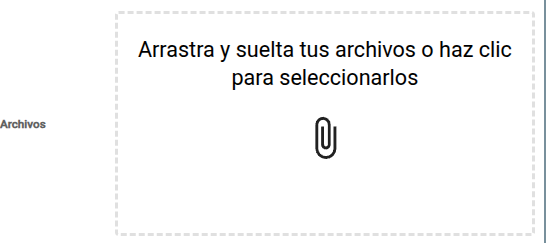
The File field (internally file) provides a drag-and-drop area, or a way to select and upload multimedia documents attached to the resource (images, PDFs, videos, etc.).
Field Structure
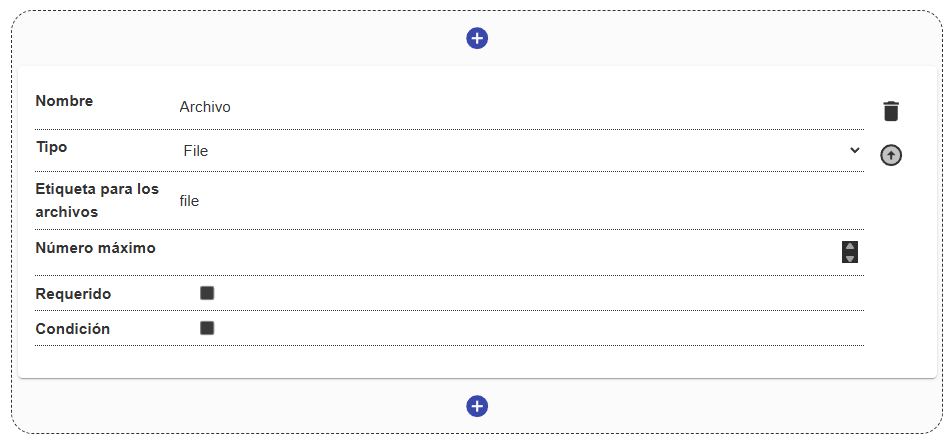
Section titled “Field Structure”Unlike text fields, the file field has specific options for managing media:
Name:
- Description: Label to identify the type of files expected.
- Example:
"Attached documents","Main photograph".
Destination:
- Description: Files are generally not embedded at the same level as text metadata; instead, they are linked through an identifier or
tagthat relates the uploaded file to this form field.
Allowed formats:
- Description: Allows limiting the accepted extension types.
- Example: Only allow
image/*andapplication/pdf.
File limit:
- Description: The maximum number of files that can be uploaded in this specific field.
- Example: Limit to
1to force a single cover image.
Required:
- Description: Prevents the user from saving the record if a file has not been uploaded and associated with this field.
Instructions, Condition, and Access levels:
- Description: Common elements for help, dynamic display, and security.
Behavior in the interface
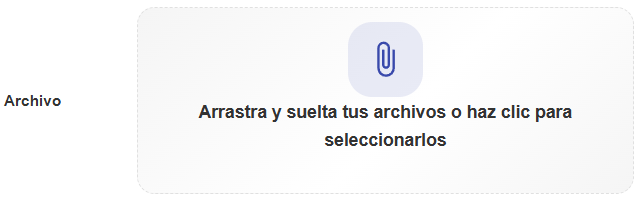
Section titled “Behavior in the interface”- The interface (DropzoneArea) shows an interactive area to drop files.
- It allows viewing the currently uploaded files as labels (chips).
- Existing files associated with the resource appear listed, allowing them to be removed or replaced according to the configured limit.
Label preview
Section titled “Label preview”Each file associated with a resource is identified by a label (tag) in a distinct color, visible both from the resource’s detail view and from its edit form once the file has been uploaded and saved: