
Inventory Generator
The plugin allows exporting inventories in ArchiHUB. This plugin is included by default in the application, so it does not need to be installed, but it does need to be activated before it appears in the processing menu. The plugin enables exporting an inventory of the resources in ArchiHUB in Excel. Below are the steps to activate the plugin and generate an inventory:
Activate the Plugin
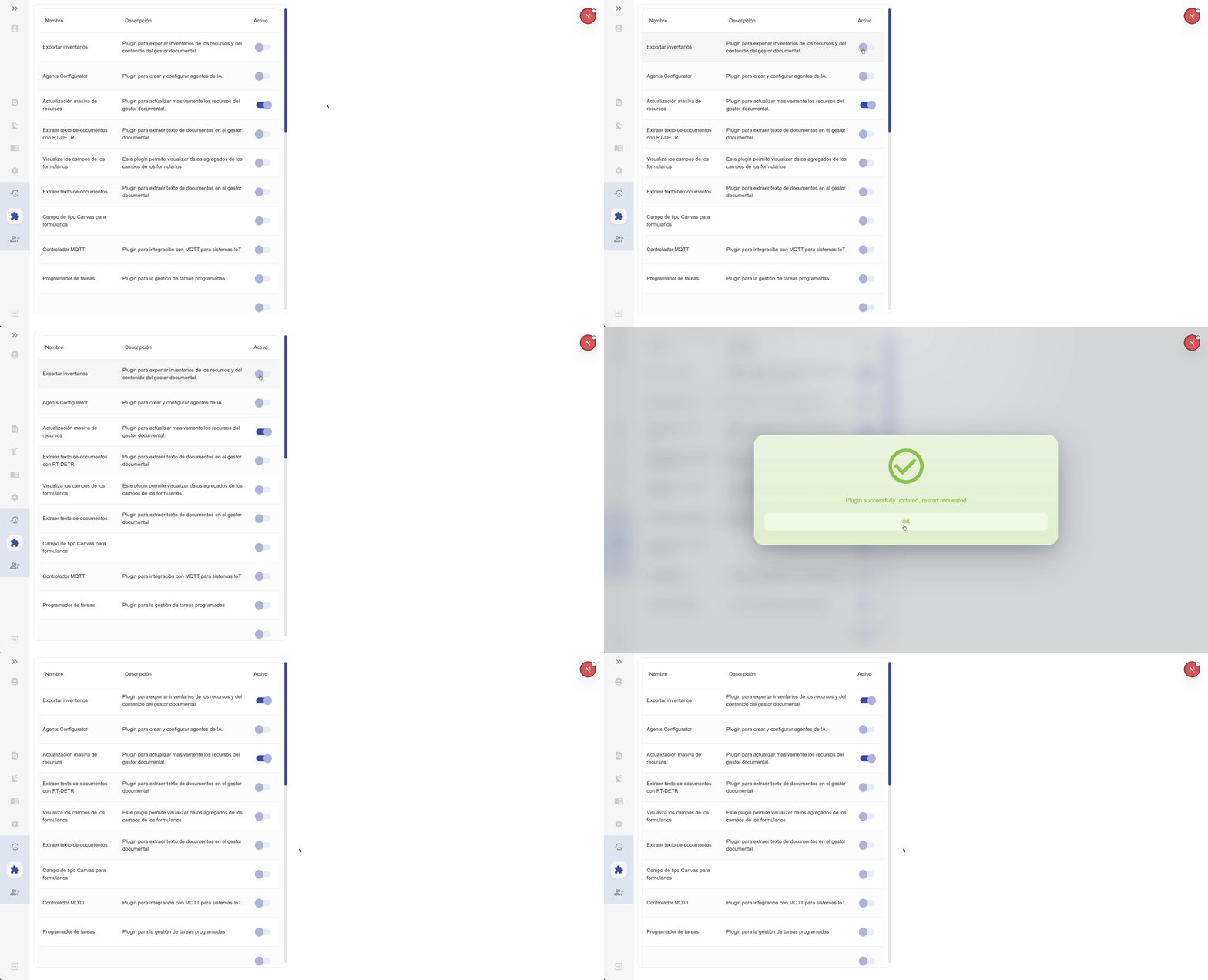
Section titled “Activate the Plugin”Even though the plugin ships with the application, it starts out deactivated. To enable it, go to the Plugins submenu of System Administration, find the inventory generator plugin and activate it. Once activated, it will appear in the processing menu.
Generate Inventory
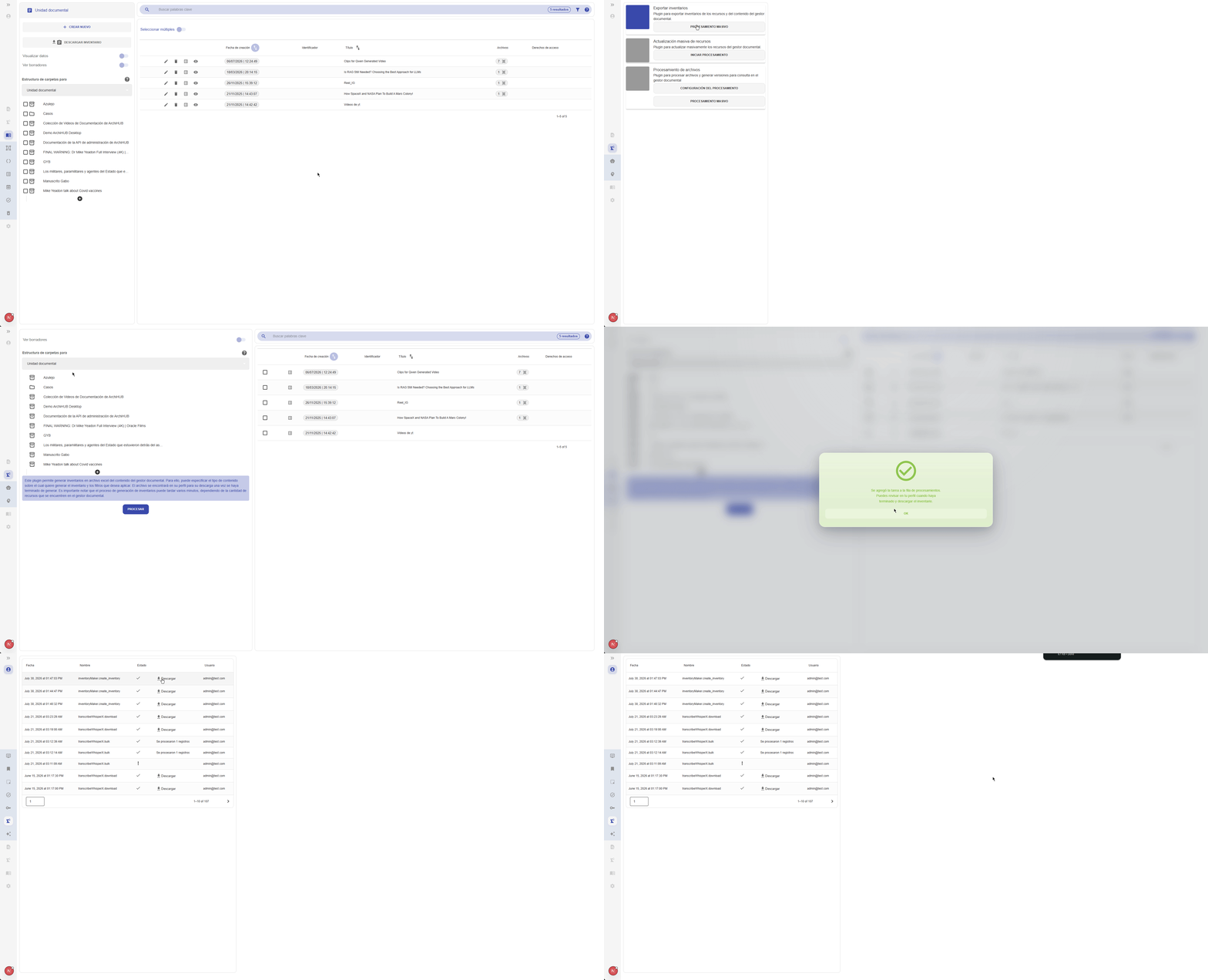
Section titled “Generate Inventory”- Access the Plugin: To access the inventory generation plugin, go to the processing tab in the ArchiHUB interface and select the
BULK PROCESSINGbutton of the export inventories plugin. - Select the Resource: Select the content type for which you want to generate the inventory.
- Export Inventory: Once you have selected the content type, click the
PROCESSbutton. The plugin will create a processing task, and the inventory will be available in the tasks tab once the task is completed. - Download Inventory: Go to My profile > My processing (in Spanish, “Tareas del sistema”) and, once the task shows as completed, click the
DOWNLOADbutton to download the inventory in Excel format.
For the usage of the plugin, it is important to have at least one processing row available, as this is necessary for executing tasks related to file processing. To create a processing row or validate its existence, review the documentation on processing rows.
The Excel file downloaded from this plugin can also be edited and re-uploaded through the massive resource updater plugin to update or create resources in bulk.